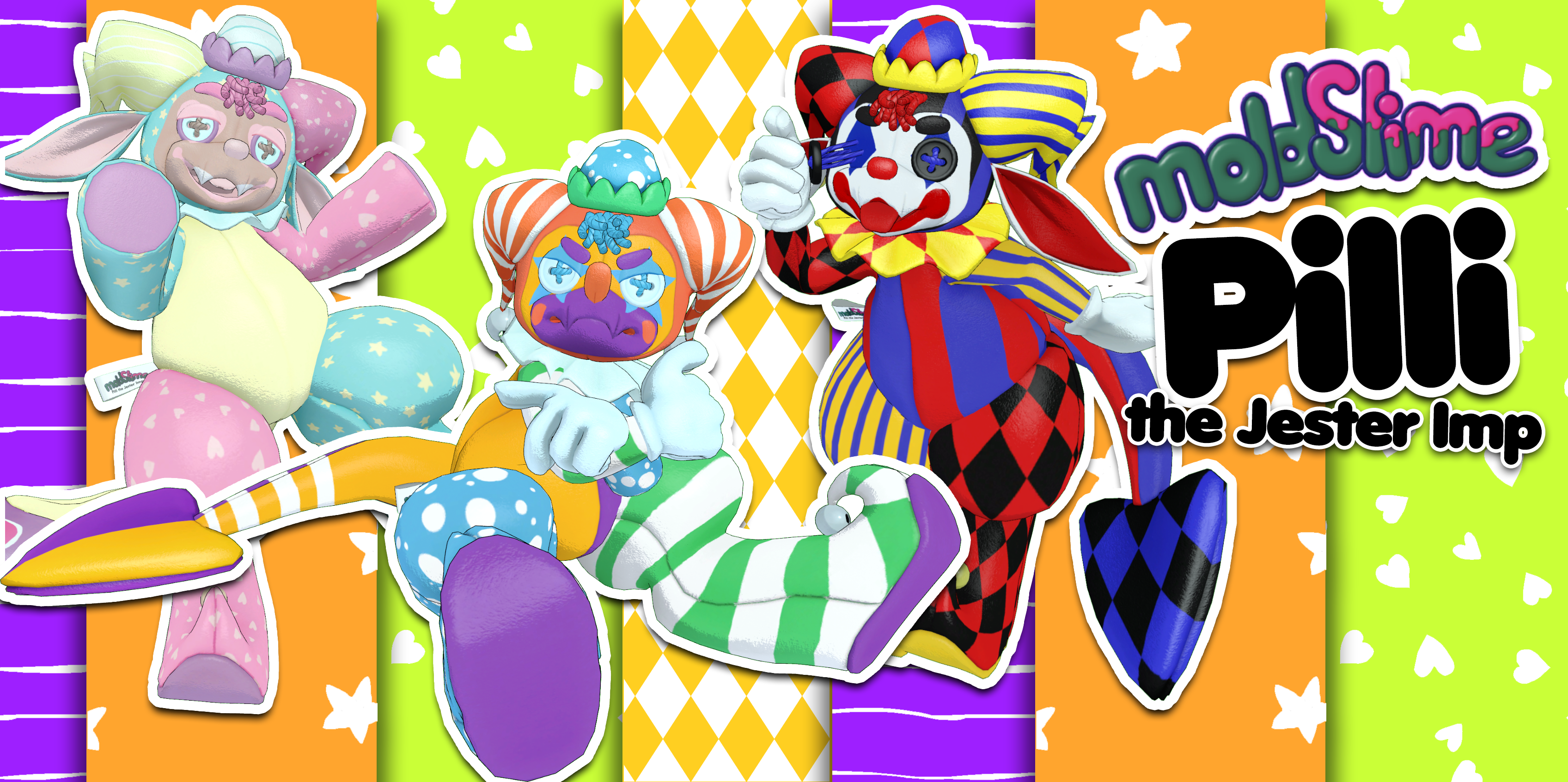
Pilli the Jester Plush
Pilli is a jolly, magical jester plush. Upon close inspection, their body is made of only cloth and thread -- but some form of imp magic appears to be animating it. The floppy plush will stretch its ears and horns and tail and even pull on their button eyes to gross people out and make them laugh.
- Release Date
- 10/28/2022
- Poly Count
- 36527
- VRChat Performance Rank (Desktop)
- Medium, utilizes Physbones and Colliders
- Quest Performance Rank
- Poor
- Files Included
-
- Substance Painter 2020 file (for version 2020 and newer)
- Unitypackage for VRChat
- Separate scene for Quest compatibility
- Blender file with rigged model (Blender 3.0+ only)
- Easy to edit photoshop files
- 3 included skins with materials to use in any 3D program
- VRChat Avatar features:
-
- Change skin on the fly and your skin options stay even when you change avatars. (Desktop only)
- Enable and disable nose, eyes, ears, neck frill, and hands through the hand menu.
- Change your nose shape with the dial to go from squishy to long.
- Manually adjust position of ears and horns via rotary dial.
- Nose squishes and squeaks when touched.
- Sound enable/disable toggle. (Noise not available in Quest version.)
Try me on! Try out a free version of this avatar by visiting the avatar world in VRChat.
3D Preview
Note: this Sketchfab preview includes a WIP version of the model.
Purchase the Avatar
Alternatively, you can purchase via any of the stores linked at the top of this page.The price and contents are identical.
Support
Installation
- Install the VRChat Creator Companion
- Add Poiyomi Toon Shader via Poiyomi's VPM Repo
- Make a new avatar project and add Poiyomi Toon Shader via the "Manage Project" button
- Once the project is open, double click on the Unitypackage file and import the avatar's files into your project.
- Open the Scene file containing the avatar by double clicking on the Mold folder, then the Pilli folder, and finally double clicking on the "Pilli" scene file with the Unity logo.
- Upload your avatar. For help, check VRChat's official documentation.